
Understand Members, Favorites and Searches
Learn where website member accounts come from and how their saved properties and searches appear in your dashboard.
Step-by-step instructions
- 01
Know what a Member is
A Member is a visitor account on an agent website, separate from an agent or staff login to the Opei dashboard. Visitors normally create one through the website registration page using their name, email and password. The account is linked to that agent and company.
- 02
Find registered members
In the dashboard, open Members → Members. Search by email or open a row to review the member. Agents see their own members; company administrators can see members in their company.
- 03
Understand Member Favorites
On the public website, a visitor clicks the heart on a property to save it. A signed-out visitor’s choice is kept in that browser and syncs to the account after sign-in. For a signed-in member, each saved property appears under Members → Member Favorites with the member and listing key. Clicking the heart again removes it.
- 04
Understand Member Searches
A signed-in member sets filters on the Listings page, selects Save Search, and gives the search a name. That creates a record under Members → Member Searches containing the member, name and filters. The member can rerun or delete it from their account page.
- 05
Check alert settings
Saved searches start with email alerts enabled; the member can turn them off on their account page. Members also have a separate preference for favorite-property price or status alerts. Review these settings before assuming that a member will receive an email.
Screenshots and callouts
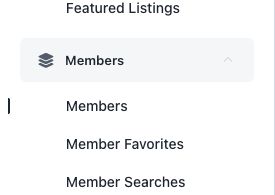 1 · Members menu
 2 · Search by email
Helpful notes
- Members are website visitors, not dashboard users. Do not create a dashboard Users account when you only need a visitor account.
- A favorite saved before sign-in may remain only in that browser until the visitor signs in and it syncs.